Official Website of the Commonwealth of Pennsylvania
Purpose: Use this guide to conveniently save documents in the Business One-Stop Shop Hub. NOTE: You MUST have an active business in the My Business tab to complete this process. This process does NOT officially submit documents to the Department of State for review.
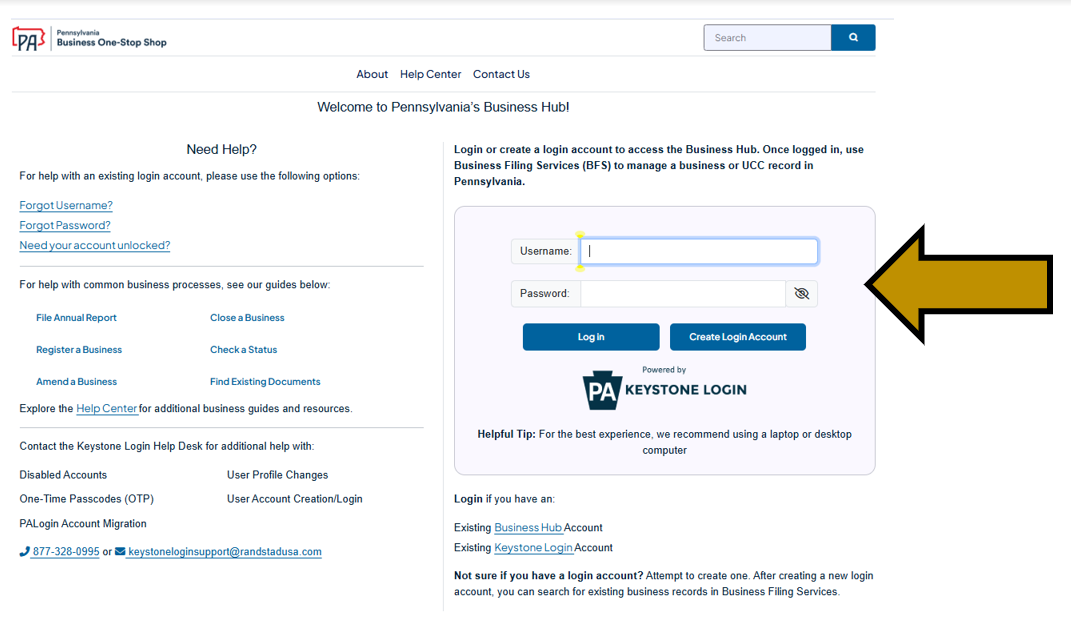
Step 1: Go to https://hub.business.pa.gov. Enter your username and password in the appropriate form fields. Click the Log In button. New users should click the Create Login Account button. For additional assistance with registering as a new user in the Hub, refer to the Register for a User Account in the Hub help guide. NOTE: The Business Hub uses Keystone Login to manage user login accounts. If you have an existing Keystone Login from any Commonwealth system associated with your email address, use your existing information to log in.
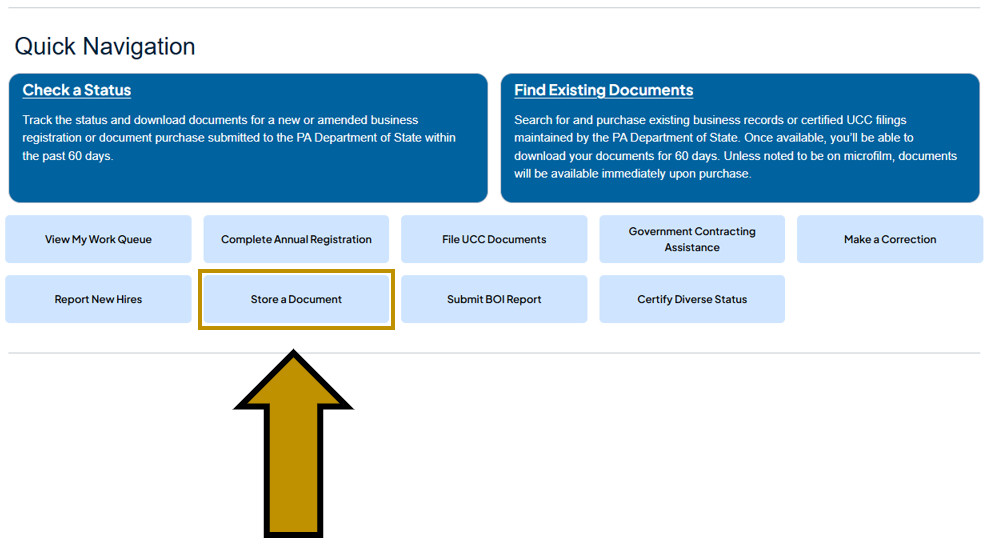
Step 2: Scroll down and under Quick Navigation click the Store a Document button.
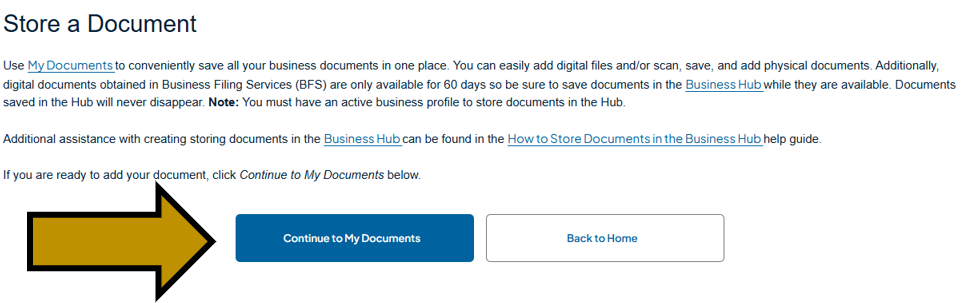
Step 3: At the bottom of the screen, click the Continue to My Documents button.
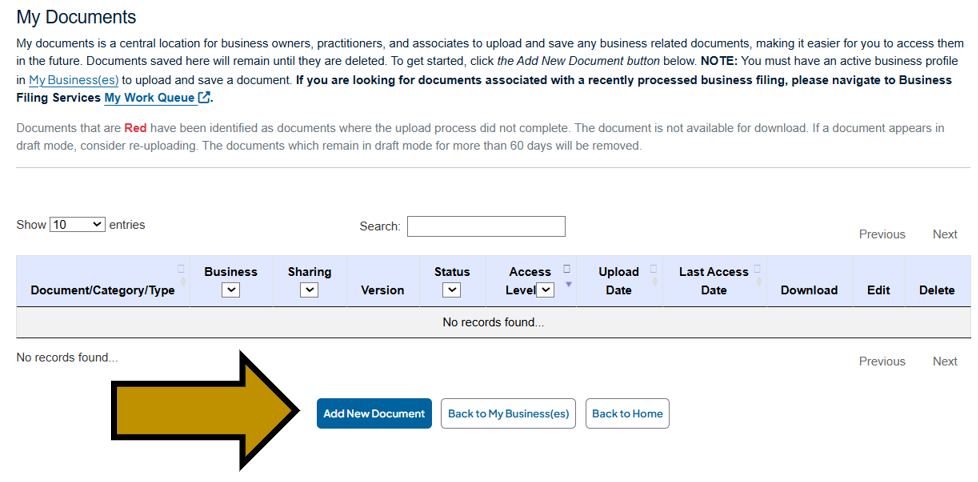
Step 4: At the bottom of the screen, click the Add New Document button.
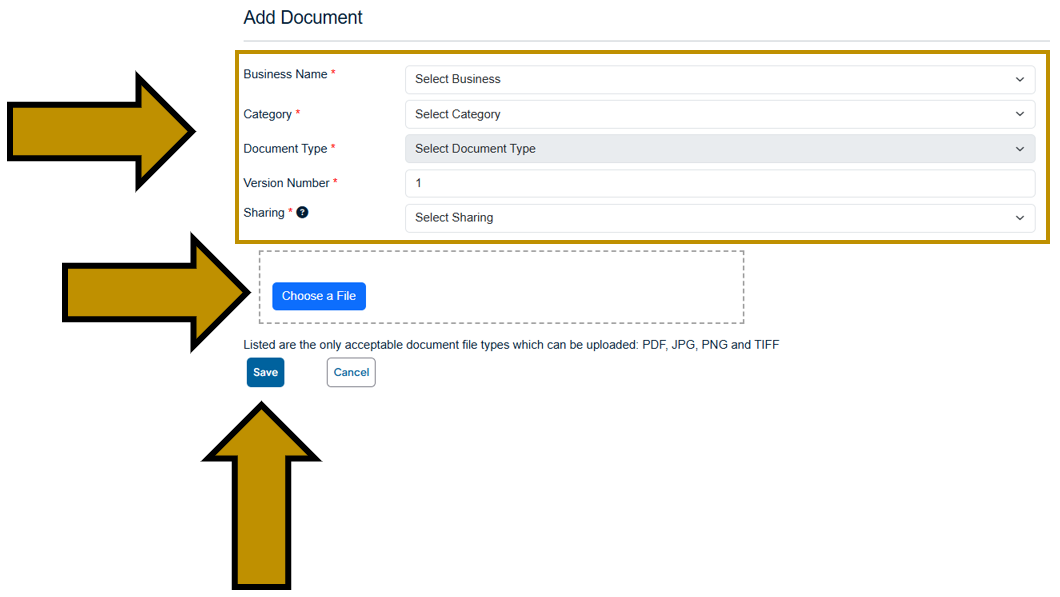
Step 5: Make the appropriate selections in the drop-down menus for Category, Document Type, Business Name, and Sharing. Drop a File or click Choose a File to select a document. Then click the Save button. NOTE: You MUST have an active business profile in My Business(es) to complete this step. If you do not have one, you will be first prompted to create a business profile. You can then upload the document.
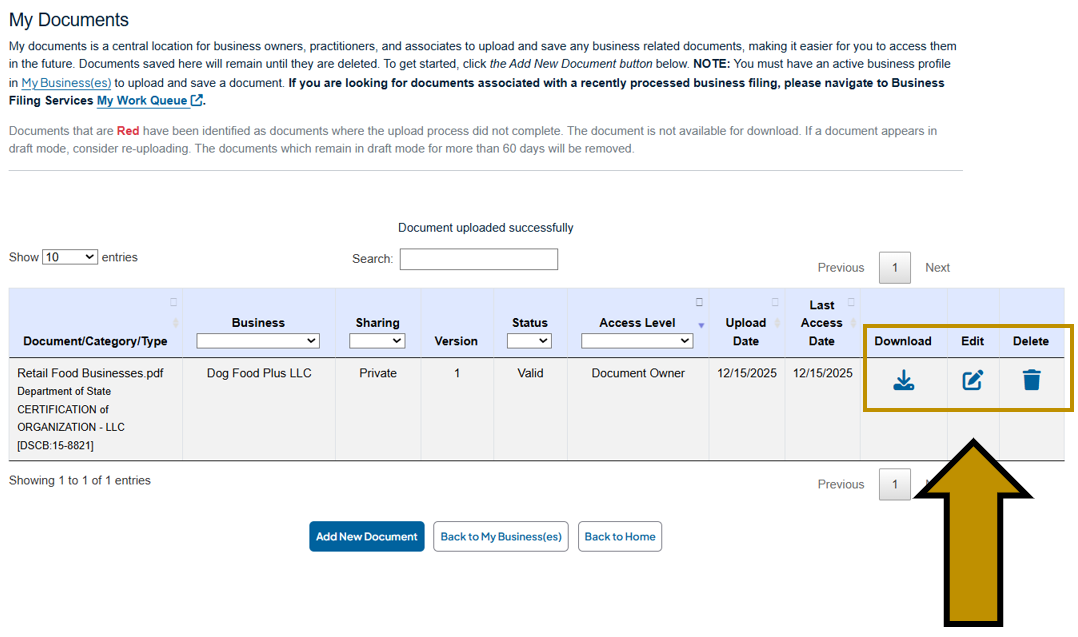
Step 6: The document is now associated with a business profile and stored in My Documents. You can now access it from your business profile. Use the Download, Edit, and Delete buttons on the right to manage your document.
Revised 3/12/2026